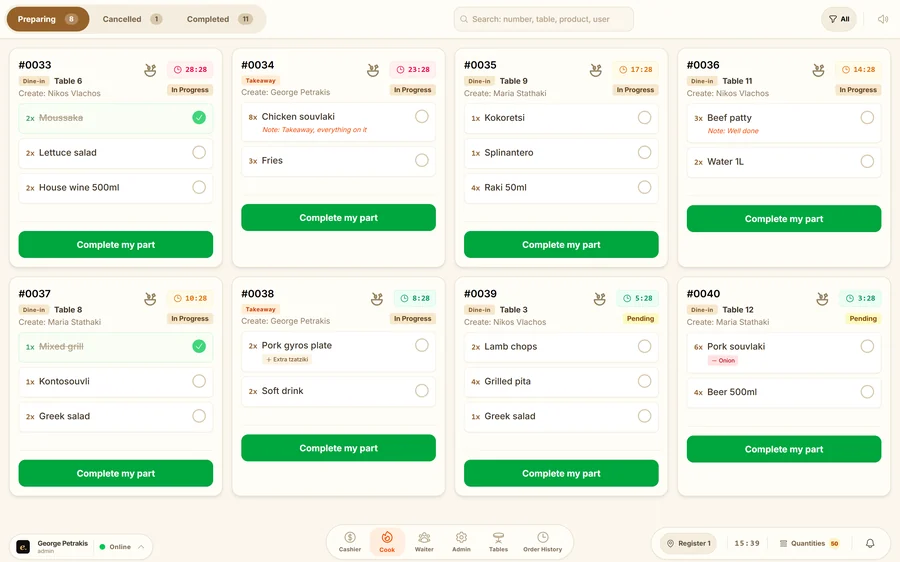
Items shown at each station
- In user management, set the kitchen role and the user’s station. Check category assignments where used. In the menu, assign food, drinks and grill items correctly.
- Sign in with that account on the station display. Send a test order from the till and confirm that the right items, quantities and notes arrive.
Prepare and hand over
- Read the items and notes on the card. The timer shows how long the order has been waiting. If you use sound alerts, test them on that device before the shift.
- Mark ready items and complete your part. If an order involves several stations, one station finishing does not mean the others have finished.
- With the standard setting, a ready order waits for handover confirmation. Optional automatic completion skips that stage. The owner chooses the flow under Features.
Add a printer
- Open administration, “Settings”, then “Printer Management” and add a printer. Enter a recognisable name, the printer’s IP address and its port. Port 9100 is common, but use the values for your model.
- Select a use, such as kitchen, bar or customer ticket, and save. Efaeto’s automatic printing uses compatible network thermal printers. A USB printer is not considered compatible just because it prints from Windows.
- Send a test order and check the printed Greek text, routing and cut. An on-screen preview does not test the printer connection.
If a ticket does not print
- Check paper, cover, power and network cable. Then check the IP address and assigned uses. Find the original order before reprinting so you do not create a duplicate.
Guide last reviewed: 24 September 2026. Available options depend on the version, user role and enabled features.